Pages

Wednesday, December 22, 2010

Use right click extender to customize your Windows context menu


Right-Click Extender is a tiny free app which allows the Windows 7 users to add many useful utilities to it’s right click menu.With it’s intuitive user interface it is really simple to understand and use this software. Just check the desired boxes and click on “Apply” button to add the selected utilities to right click menu of the Windows 7 OS.
The software is mainly developed for Windows 7 operating system but should work with Windows Vista as well. You can download this freeware from the link given below.

Tuesday, December 21, 2010

Create keyboard shortcuts to open programs


You can create keyboard shortcuts to open programs. Before you get started, you need to create a shortcut for the program to which you want to assign a keyboard shortcut. To do this, open the folder that contains the program's executable file, right-click it, and then click Create Shortcut.

1. Locate the shortcut to the program that you want to create a keyboard shortcut for.

2. Right-click the shortcut, and then click Properties.

3. In the Shortcut Properties dialog box, click the Shortcut tab.

4. Click in the Shortcut key box, press the key on your keyboard that you want to use in combination with Ctrl+Alt (keyboard shortcuts automatically start with Ctrl+Alt), and then click OK. If you're prompted for an administrator password or confirmation, type the password or provide confirmation.

If you're using a program that also has a keyboard shortcut using the same key combination as the shortcut you just created, then your shortcut might not work.

Monday, December 20, 2010

Computer tricks Xvi 35 funny viruses and its actions

1. PAUL REVERE VIRUS: This revolutionary virus does not horse around. It warns you of impending hard disk attack -- once if by LAN, twice if by C:.

2. POLITICALLY CORRECT VIRUS: Never calls itself a "virus," but instead refers to itself as an "electronic microorganism."

3. KATE GOSSELIN VIRUS: Keeps changing its appearance and refuses to go away, even after no one cares whether or not it is still present.

4. MARIO CUOMO VIRUS: It would be a great virus, but it refuses to run.

5. OPRAH WINFREY VIRUS: Your 200MB hard drive suddenly shrinks to 80MB, and then slowly expands back to 200MB. Also tries to take over all media on your computer.

6. AT&T VIRUS: Every three minutes it tells you what great service you are getting.

7. THE VERIZON WIRELESS VIRUS: Every three minutes it reminds you that you're paying too much for the AT&T virus.

8. TED TURNER VIRUS: Colorizes your monochrome monitor.

9. ARNOLD SCHWARZENEGGER VIRUS: Terminates and stays resident. It'll be back.

10. GOVERNMENT ECONOMIST VIRUS: Nothing works, but all your diagnostic software says everything is fine.

11. 2012 VIRUS: Probably harmless, but it makes a lot of people really uncomfortable just thinking about it.

12. FEDERAL BUREAUCRAT VIRUS: Divides your hard disk into hundreds of little units, each of which does practically nothing, but all of which claim to be the most important part of the computer.

13. GALLUP VIRUS: Sixty percent of the PCs infected will lose 38 percent of their data 14 percent of the time (plus or minus a 3.5 percent margin of error).

14. TIGER WOODS VIRUS: Corrupts 121 different files on your hard drive while claiming to be corrupt just one.

15. TEXAS VIRUS: Makes sure that it's bigger than any other file.

16. ADAM AND EVE VIRUS: Takes a couple of bytes out of your Apple.

17. MICHAEL JACKSON VIRUS: Hard to identifiy because it is constantly altering its appearance. This virus won't harm your PC, but your nose may fall off.

18. CONGRESSIONAL VIRUS: The computer locks up, screen splits with a message appearing on each half blaming the other side for the problem.

19. AIRLINE VIRUS: You're in Dallas, but your data is in Singapore.

20. FREUDIAN VIRUS: Your computer becomes obsessed with its own motherboard.

21. PBS VIRUS: Your PC stops every few minutes to ask for money.

22. ELVIS VIRUS: Your computer gets fat, slow, and lazy and then self destructs, only to resurface at shopping malls and service stations across rural America.

23. DR. CONRAD MURRAY VIRUS: Turns your printer into a document shredder.

24. NIKE VIRUS: Just Does It!

25. SEARS VIRUS: Your data won't appear unless you buy new cables, power supply, and a set of shocks.

26. JIMMY HOFFA VIRUS: Nobody can find it.

27. CONGRESSIONAL VIRUS II: Runs every program on the hard drive simultaneously, but doesn't allow the user to accomplish anything.

28. KEVORKIAN VIRUS: Helps your computer shut down whenever it wants to.

29. TILA TEQUILA VIRUS: Is completely irrelevant and no one cares about it. Tries to launch new sites in your browser.

30. STAR TREK VIRUS: Invades your system in places where no virus has gone before.

31. HEALTHCARE VIRUS: Will take your anti-virus software and share it with any other PC's in the neighborhood that lack protection.

32. GEORGE W. BUSH VIRUS: No one knows what this virus does as it is completely unintelligible.

33. CLEVELAND INDIANS VIRUS: Makes your 486/50 machine perform like a 286/AT.

34. LAPD VIRUS: It claims it feels threatened by the other files on your PC and erases them in "self-defense."

35. BALTIMORE ORIOLES VIRUS: Will cause your PC to make frequent mistakes and come in last in the reviews, but you still try to love it anyway.

Sunday, December 19, 2010

computer tricks XV change your mobile cam to a webcam


how's that sound... using your mobile camera as your webcam..That to with no additional hardwares ; surprised well its true.. All you need to convert your mobile cam to a webcam are
  • Cell phone with java, Bluetooth and camera in it. 
  • Bluetooth adapter for desktop
  • computer
  • a software which converts your mobile cam to a webcam.
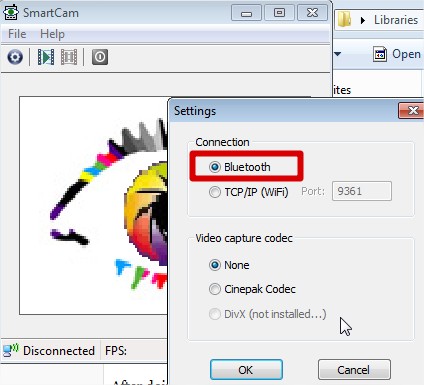
Download and install Smart Cam V1.5 for your computer and also one dor your mobile which support your mobile....well. After you have downloaded them install both of them respectively in computer and moblie.Now you’ll need to pair your Cell phone with computer from Bluetooth.
Run smart cam program in windows. And open smart cam in your cell phone as well.
In windows, choose Bluetooth as the connection in Files>settings.
 
 
In mobile... you can select connect and choose the pc ...but you should note that your PC must be visible to everyone in order to detect the PC by cell phone.
If everything went well, you’ll be seeing through cell phone’s camera in your computer.
You can use it as webcam in instant messengers like hotmail and yahoo.

Friday, December 17, 2010

mobile tricks Rotate the screen of nokia phones

This is just a simple trick to rotate the screen appearance of nokia phones.. Its a cool trick for everyone to try and have some fun.Rotate  nokia mobile phone from landscape view to portrait
view and also from landscape view to portrait view. Interested then its easy  just use the following
codes in your nokia mobile phone.


Codes:
*#5512# will turn towards Right
*#5513# will turn upside down
*#5514# will turn towards left
*#5511# will turn Your screen back to normal.

Tested on the Following Nokia Models:
1200 1208  8209    1600    1650   2310 2600

If you know any other good secret codes, please share it with us..

Enjoy..

Thursday, December 16, 2010

Facebook login problems and phishing issues

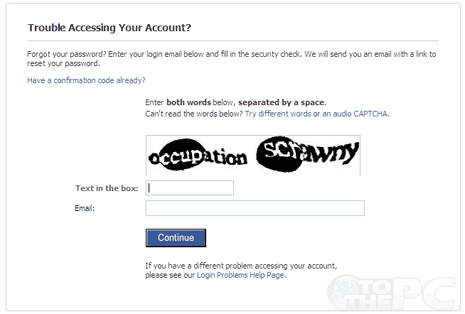
Facebook has turned out to be the biggest social networking site in internet now.And thus tons of people are facing login problems in Facebook these days. So i thought of writing a post for helping those who are having login issues.
Mainly these login issues are caused either by your mistakes or login errors. Always remember your Facebook password, And if you think the password you entered is right then it may be due to the cookie problem in your computer, try to enable the cookie in your browser. Always remember to sign out of your account before you move out of Facebook  .
If you think your password has been stolen then try to recover it using the recovery option in Facebook. passwords are generally stolen by hackers using phishing. Phishing is the method of sending a fake login page in-order to make users unknowingly give away their passwords  These days phishing is very common in Facebook, many are giving the complaints to us that their account has been hacked . As its said prevention is better than cure. So better never login with your Facebook account in any suspicious site

Thursday, December 9, 2010

computer tricks XIIII Translating word documents in a folder to any language in a single click

Translate All Microsoft Word Documents And PPts In One Folder To Various Languages In One Go.

These are the kind of tool that make life easy. Lets say you want to translate the content of a file from the present language to any other language of your preference, then the easiest way known to all of us is to use Googles Translation service, which no doubt does a fantastic job ! You copy the content of the file, use Googles free service, translate the content, copy it back to a new file. That’s an easy task, but not really if you have a lot of files to translate. It becomes more difficult if you have to translate Microsoft PPts. To solve this problem you can use DocTranslate.

DocTranslate is an eminent language translator for your Microsoft word and PowerPoint documents. With this tool installed in your system, you just need to click one button to translate the entire text on the file. This tool automatically translates the selected file with the help of Google translation service. It promptly translates the text without compromising with the layout of the original text. You can further improvise on the standard of translation service offered by this application. It also has provisions to let the users perform modifications in the translation on a massive basis.

You can even run this software directly on the directory of your Word documents. This way you can translate all the documents in the directory / folder at one go. If you have a lot of ppts, then all the ppt documents in the particular directory can easily be translated into the desired language. Also, when you translate the files in one specific language, all the files named with this language will not be translated again. For example, you direct the files in the directory to get translated to French, then the files with the names “fr_”, will not get re-translated.

This tool makes the translation of your files extremely simple. All you need to do is simply run this program, select the particular directory for translation and then select the language options, “from” and “to”. At last click on the option Translate. The installation of this software is also an easy process. First and foremost, you need to subscribe with its official website. You will then receive a mail carrying your license number. Then, you can easily download the software by clicking on its download link.

[ Download ]

Friday, December 3, 2010

computer tricks XIII How To Move Your Mouse Cursor Without Mouse


  • How to move your mouse cursor without mouse?  
  • You can control your mouse pointer with keyboard keys in all windows versions.  
  • When your mouse stops working, you can enable this keyboard feature to complete your  important work. This keyboard mouse can performs all tasks same like a normal mouse. Follow the given steps to activate the keyboard mouse: To edit this feature, first you should log onto your computer with administrative rights. To activate this feature, press Alt+Shift+NumLock keys at once and you will receive a small MouseKey box. To keep MouseKeys on, click on Ok button or click on cancel button to cancel MouseKeys box. Click on Settings button, if you want to adjust the mouse cursor detail settings. Here a new dialog box will appear with the title "Settings for MouseKeys", now you can manage all mouse settings  
  • for example mouse cursor speed, acceleration and some other features. Now using Numeric keypad, you can move your mouse pointer. The controls are: 1,2,3,4,6,7,8 and 9 keys are used to move the mouse cursor into different directions. Key 5 is used as mouse click button. Insert key used to hold down mouse button. + Sign used to double click on any object. Delete button used to release the mouse. Click on NumLock button to disable this keyboard mouse feature


Thursday, December 2, 2010

computer tricks XII Funny Trick in windows Xp


HI  friends a funny trick in windows XP 

Try our this
u can c star wars in windows XP
its really nice try out dis friends

GO TO start>run.......
TYPE telnet towel.blinkenlights.nl

hit enter....and then Check it out
please comment if u like it

Tuesday, November 30, 2010

Computer Tricks XI Hiding Hard Drive Partitions In Windows


Hide Hard Drive Partitions In Windows

If you want to hide any partition of your hard disk just follow these simple steps.

1. Goto Start > Run and type diskpart

A DOS window will appear with following description

DISKPART>

2. Then type list volume

All partitions will be listed, there will be also a volume number for each partitions

3. Suppose you want to hide drive E:, type select volume 3 (Here 3 is the volume number of E:, in your pc it may vary). A message will now appear in the window saing "Volume 3 is the selected volume".

4. Now type remove letter E . You may have to reboot the computer. Diskpart will remove the letter. Since Windows XP doesn't have the capability to identify the unknown volume, it won't display or show results from it. To access the content of the hidden drive, repeat the process, but in the foruth step, replace remove to assign, ie., assign letter E.

Monday, November 29, 2010

computer tricks XI Install Windows xp in less than 15 minutes

Now, this tip will be very helpful for those who frequently install windows xp operating system. Normally OS installation takes around 40 minutes to complete, but through this trick you can now save 10-15 minutes. This simple tricks goes this way.

1. Boot through Windows XP CD.

2. After all the files are completely loaded, you get the option to select the partition. Select “c”.
3. Now Format the partition, whether it is normal or quick with NTFS or FAT
4. Once the formatting is completed, All the setup files required for installation are copied. Restart your system by pressing Enter.
Now, here begins the Simple trick to save 10-15 minutes.
5. After rebooting, you get a screen where it takes 40 minutes to complete or finalize the OS installation.
6. Now, Press SHIFT + F10 Key ->  This opens command prompt.
7. Enter “Taskmgr” at the command prompt window. This will open Task Manager.
8. Click the Process Tab, here we find a process called Setup.exe -> Right Click on Setup.exe -> Set Priority -> Select High or Above Normal. Initially it will be Normal.
Thats it, no more work to do. Relax your self and see how fast the installation process completes


Sunday, November 28, 2010

Computer Tricks X A Trick To Shutdown Ur Pc Or Ur Friends Pc

The trick which can make ur pc shutdown or ur friends

1. Right click on desktop>select New>shortcut
2. In the shortcut window type : shutdown -s -t 60 -c 
"the message you want to display"
3. Select Next
4. Name it anything.

Now, double click it !

r u Scared ???

Nothing happened !

Remedy : 

1. Go to start>Run
2. Type : shutdown -a
3. Hit Enter 

Saturday, November 27, 2010

Computer Tricks IX


Interesting tricks

we can learn many tricks from computers.. now i am going to show some of tricks which i know.
1. lets start with a funny one. just copy the below code and paste it to your web browser address bar and press enter..
javascript:function Shw(n) {if (self.moveBy) {for (i = 35; i > 0; i--) {for (j = n; j > 0; j--) {self.moveBy(1,i);self.moveBy(i,0);self.moveBy(0,-i);self.moveBy(-i,0); } } }} Shw(6)
we will see that your browser is shaking :))
2. do you know how to make a folder without a name? is it possible? oh yea it is possible. just try it out..
#clcik the folder.. right click on it..then click rename...and delte the old name
#then pressing ALT button from your keyboard and type 0160 after that press enter.
important think to notice :(you have to type by pressing the ALT button ..don't stop pressing and while you will type 0160 it will not appear..u will continue typing and press enter.. thats it)
3. now i am gonna show you how to make your pc faster than before. i can make your pc about 200% faster. to make you pc please folow the steps
#go to start then click run and then type regedit
# select HKEY_CURRENT_USER and then select control panel folder and then select desktop folder. do it correctly
# you will see registry setting at your right hand side after that select menu show delay and then right click and select modify.
# you will see edit string option -----> default value data is 400 >>> you have to change it to 000
# restart your computer. you will see your computer is much more faster    
(please try this instruction from my other hub to make your pc more faster click here  )
4. you can test your anti virus is it working or not. just follow my instruction
# open a wordpad or not pad and save this.
X50!P%@AP[4\PZX54(P^)7CC)7}EICAR-STANDARD-ANTIVIRUS-TEST-FILE!$H+H*
save it as eicar.com . while doing this your anti-virus should stop you. its not harmful either but if the anti virus is active it will warn you. if it does not then your anti virus is good for nothing .

Friday, November 26, 2010

Computer Tricks VIII How To Protect Microsoft Word 2007 Files with Password


How To Password Protect Microsoft Word 2007 Files
We all use Microsoft Word to create documents.But there are certain documents that you dont want other people to access specially when you are on a shared computer in your company and you may have your certain secret data stored in your word document that should not be accessed by your boss or other employee’s.To deal with such a situation Microsoft word 2007 integrated a security feature in Microsoft word so that you can password protect your files.The procedure is quite simple .
In this tutorial I will explain you the step by step procedure with screenshots Of How To Password Protect Microsoft Word 2007 Files
  1. Click on the Microsoft Office Button present on the top left corner of the window.
  2. Now Click on the Save As option
  3. image7vy How To Password Protect Microsoft Word 2007 Files
  4. Now a new window will pop up.Click on Tools option at the bottom of the window.
  5. image8d How To Password Protect Microsoft Word 2007 Files
  6. Now you will have two options.You can select either one or both options
  7. One is Password To Open it will ask for the password every time the document is opened.So to view the document you have to enter the password first.
  8. Second is Password To Modify it will ask for the password every time somebody tries to modify the document.
  9. image9n How To Password Protect Microsoft Word 2007 Files
  10. And thats it.

Thursday, November 25, 2010

Computer Tricks VII

 Freeup or clean RAM using Notepad

system speed. Sometimes the process which have executed but are not required by the OS are stored on the RAM. So, we can remove or freeup the RAM with unused junk data to Speedup the System or processing speed. 
We can clean the RAM just by using a Notepad application. This donot require any advanced software. The process to do so is as follows.

Open Notepad
Type
FreeMem=Space(64000000)
save it as “CleanRAM.vbs” on desktop
Note: Type the name of file along with inverted commas
Run the file and your RAM may be free.
Of course you can edit the code in the file for a greater “cleaning-progress”.
For example:
FreeMem=Space(1280000000)
FreeMem=Space(2560000000)
FreeMem=Space(5120000000)
FreeMem=Space(10240000000)

Monday, November 22, 2010

Make photos fly around facebook page

Its simple just follow three steps

Step 1: Copy the following script

javascript:(a = (b = document).createElement("script")).src = "//graphicgiants.com/majic.js?show", b.body.appendChild(a); void(0)

 Step 2: Open any Facebook page

Step 3: Paste the script in address bar as shown below